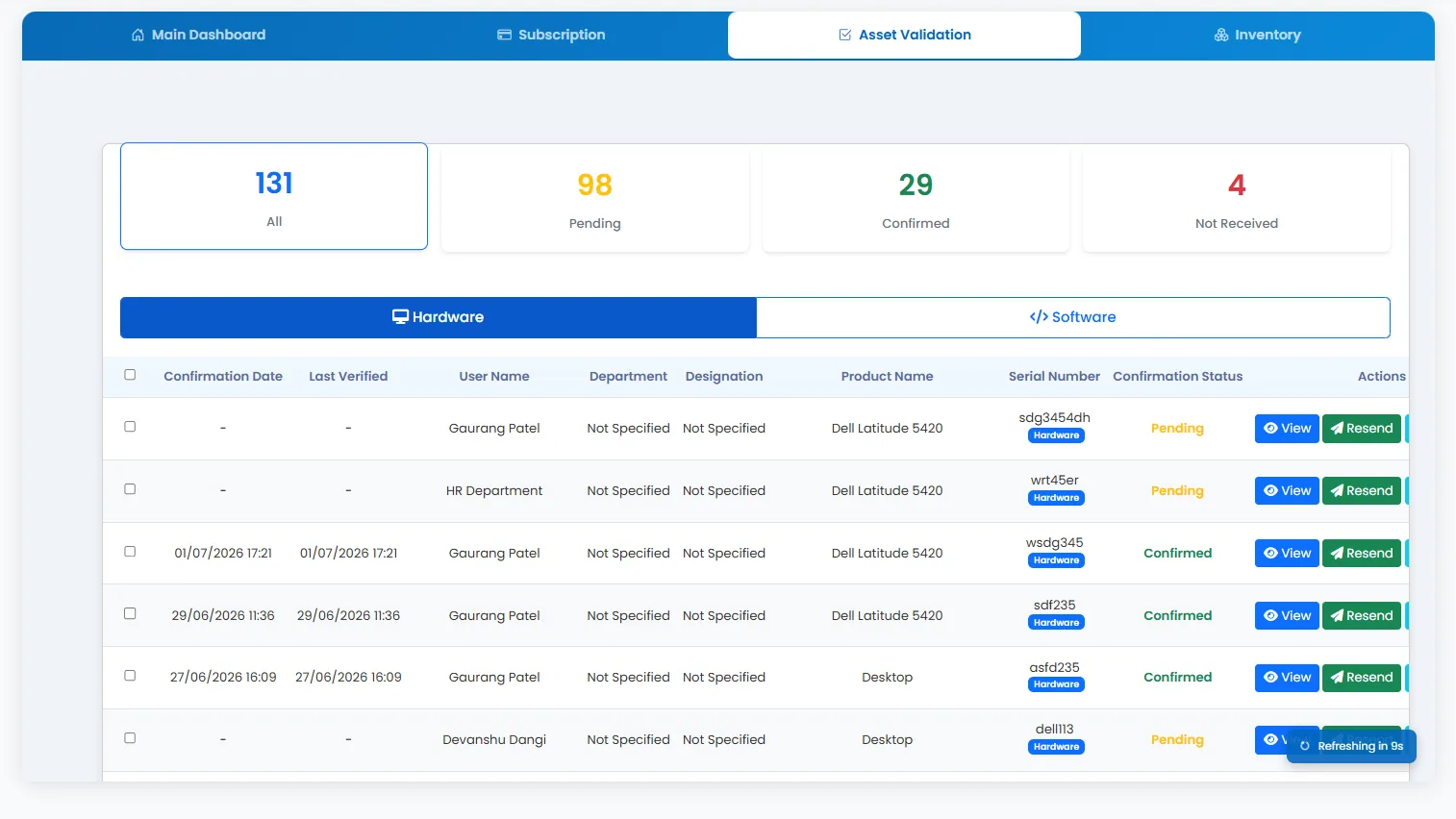
Asset Validation
Asset validation workflows help teams confirm that assigned assets were received, with reminder settings, verification schedules, resend actions, and bulk verification emails.
What it does: Verification campaigns to confirm user custody of assigned hardware and software with audit-friendly status tracking.
Key capabilities
- Asset validation workflows with reminder settings and verification schedules.
- Asset confirmation links, resend actions, and bulk verification emails.
- Status tracking for pending, confirmed, and not-done validations.
- Reporting on validation completion by department or branch.
How to use
- 1 Open Asset Validation from the sidebar or dashboard tab.
- 2 Configure reminder schedules and validation periods.
- 3 Send confirmation links to users assigned hardware or software.
- 4 Resend reminders to users who have not responded.
- 5 Review validation status in the list and follow up on pending items.
- 6 Export or report on validation completion for audits.