Inventory
Inventory covers day-to-day asset movement between stock, users, branches, and server rooms, plus inward goods, parcel confirmation, and barcode-based location updates.
What it does: Full inventory operations for stock assignment, transfers, barcode scanning, goods receipt, and location tracking.
How to use
Viewing Inventory Overview
- 1 Navigate to Inventory Overview from the main menu to access the dashboard.
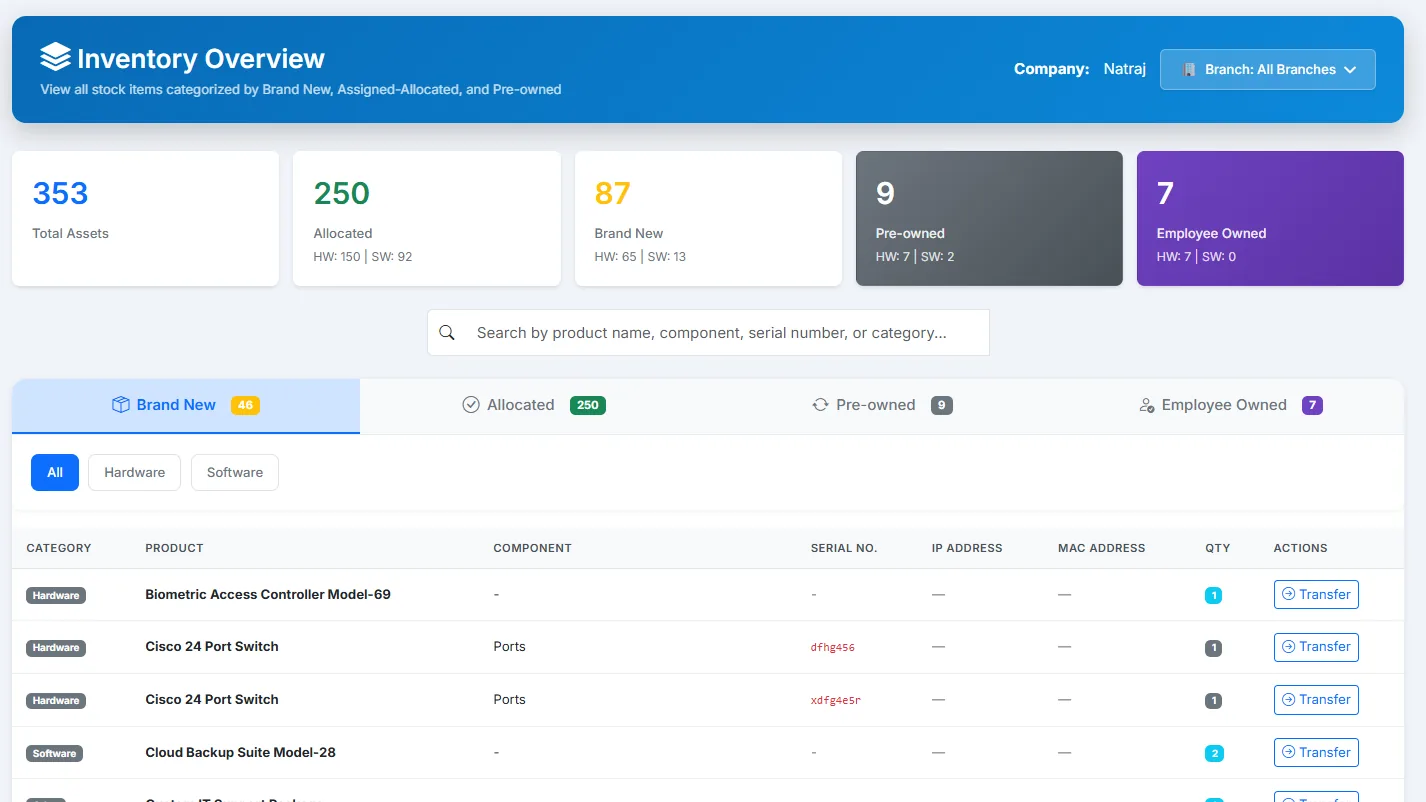
- 2 Summary Cards: View key metrics at the top - Total Assets (30), Allocated (29), Brand New (0), and Pre-owned (1) with Hardware/Software breakdown (HW: 23 | SW: 4).
- 3 Branch Filter: Select specific branch from "Branch: All Branches" dropdown or view all branches together.
- 4 Use the search bar to find items by product name, component, serial number, or category.
Filtering and Browsing Items
- 1 Status Tabs: Filter inventory by status - Brand New (0 items), Allocated (29 items), or Pre-owned (1 item). The count badges show item quantities.
- 2 Category Filters: Use All, Hardware, or Software tabs to filter items by type.
- 3 Detailed View: Browse the inventory table showing Category, Product, Component, Serial/ID, Assigned To, and Type columns.
- 4 Click "Click to view details" link next to any product to see expanded component-level information (e.g., Storage Disk, Controller, PSU, Fan for servers).
Managing Pre-owned Items
- 1 Click on the "Pre-owned" tab to view items that are available for reallocation.
- 2 View pre-owned item details including product name, component, serial number, and quantity.
- 3 Click the "Transfer" button next to any pre-owned item to reassign it to a new user or branch.
Assigning Assets from Stock
- 1 Click on an item or the Transfer button to open the "Asset Details" modal dialog.
- 2 Review Asset Info: Verify the Category, Product, Component, and Serial/ID displayed at the top of the modal.
- 3 Serial Number: For pre-owned items, the existing serial is pre-filled (e.g., P-SN-25-0002). For brand new items without serial, enter a unique serial number.
- 4 Branch Selection: Choose the target branch from the "Branch*" dropdown (required field) - e.g., Natraj-Mumbai.
- 5 User Assignment: Optionally select a user from "Assign to User" dropdown to assign the asset to a specific employee or group.
- 6 Click the "Assign" button to complete the asset allocation and update the inventory status.
Additional Features
- 1 Multi-Component Assets: View and manage complex assets with multiple components (servers with storage, controllers, PSUs, fans) individually.
- 2 User Type Badges: Identify assignment type through colored badges (e.g., "User" in blue) in the Type column.
- 3 Subscription Link: Use "Open Subscription" button in the asset details modal to manage software subscriptions associated with the asset.
- 4 Track full asset lifecycle from Brand New → Allocated → Pre-owned status with complete audit trail.