Role Management
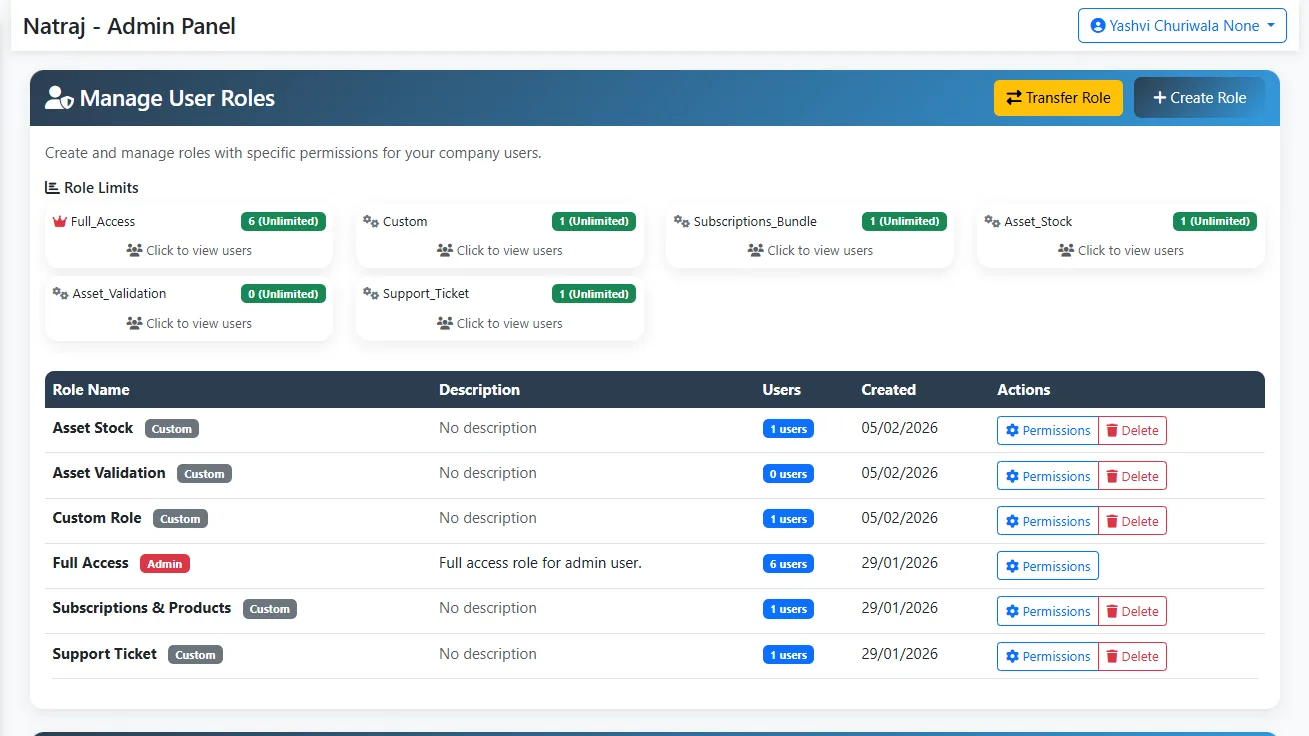
Admin can assign roles and permissions. After login, users only see the modules they are allowed to access.
What it does: Role-based access control so each user gets a tailored menu and permissions (e.g. view-only, edit, admin).
How to use
⚠️ Admin Only: Only Admin can access Role Management and assign roles.
Step 1: Access Role Management
- 1 Click on "Role Management" option from the Menu (visible only to Admin).
- 2 Role Limits: View all existing roles here - Full_Access, Custom, Subscriptions_Bundle, Asset_Stock, etc.
- 3 See how many users are assigned to each role - "3 (Unlimited)", "0 (Unlimited)".
Step 2: Create New Role
- 1 Click on the "+ Create Role" button at the top of the page.
- 2 Enter Role Name and Description (optional).
- 3 The role will be created and displayed in the Role Table.
Step 3: Assign Permissions to Role
- 1 Click on the "Permissions" button next to any role in the Role Table.
- 2 Permission Toggles: Turn on/off View, Edit, Create, Delete permissions for each module (blue = on, grey = off).
- 3 Modules: Company Profile, Vendors, Products, Subscriptions, Users, Support Tickets, Reports, Asset Validation, Asset Stock, Deals, Branches, Scrap Items.
- 4 Quick Actions: "Select All" (enable all), "Deselect All" (disable all), "View Only" (view permissions only), "Read & Write" (view and edit).
- 5 Click "Save Permissions" button to save the permission settings.
Step 4: Assign Role to Users
- 1 Navigate to the "User Management" page.
- 2 Edit any user and assign the role you created to them.
- 3 After saving, the user will only see and access features according to their assigned role permissions.
Additional Features
- 1 Transfer Role: Use the yellow "Transfer Role" button to transfer a role from one user to another.
- 2 Delete Role: Click the red "Delete" button in the Actions column to delete a role (Admin role cannot be deleted).
- 3 View Users: Click "Click to view users" link to see which users are assigned to each role.