Scrap
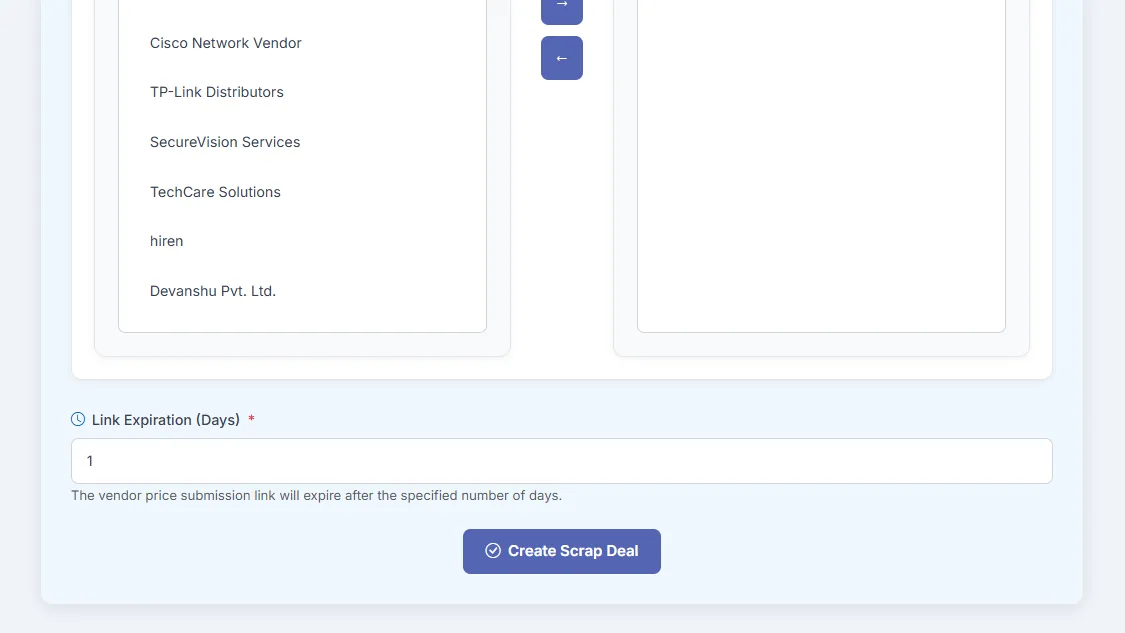
Tracker365 handles disposal-oriented scrap processes alongside procurement, including scrap deal creation, comparison, and sale processing for items leaving inventory.
What it does: Scrap pipeline for marking end-of-life assets, creating scrap deals, and comparing disposal options.
Key capabilities
- Create, edit, delete, and compare scrap items and scrap deals.
- Create scrap deals from the procurement area.
- Manage sale products and process sales for disposed items.
- Maintain auditable disposal records linked to inventory.
How to use
- 1 Open Scrap from the sidebar.
- 2 Add hardware to scrap or create a scrap deal.
- 3 Compare scrap vendor offers when multiple disposal quotes exist.
- 4 Approve the selected scrap path and update inventory status.
- 5 Process related sale records if items are sold rather than discarded.
- 6 Retain scrap history for compliance and audit reviews.