Subscription
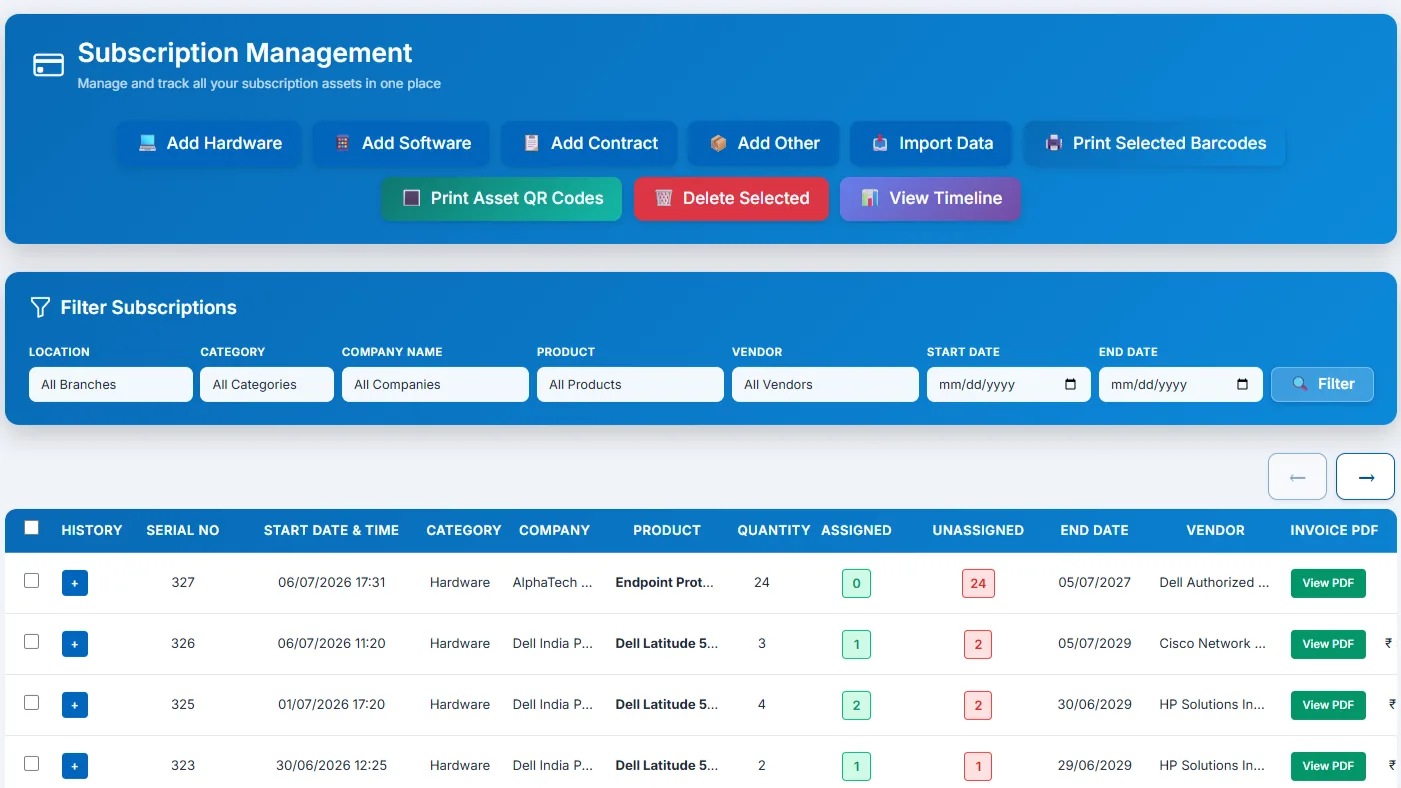
Tracker365 maintains hardware, software, contracts, and other subscribed assets with filtering, detail views, license assignment, and printable barcodes or QR codes.
What it does: Unified subscription registry with intake flows, timelines, license counts, and barcode/QR output.
Key capabilities
- Separate intake flows for hardware, software, other assets, and contracts.
- Central subscription and asset listing with filtering and detail views.
- License assignment and remaining-license management.
- Subscription history and timeline pages for lifecycle tracking.
- QR code and barcode printing for assets and subscriptions.
- Service records for hardware maintenance history.
How to use
- 1 Open Subscription and review the subscription list.
- 2 Add hardware, software, contract, or other subscription types.
- 3 Filter by branch, category, company, product, vendor, or date range.
- 4 Assign licenses to users and monitor assigned vs. unassigned counts.
- 5 Open the timeline view for renewal and expiry planning.
- 6 Print barcodes or QR codes and attach service records when needed.