Vendor Management
Vendor Management stores supplier masters used across procurement deals, subscriptions, and asset records so every purchase can be traced to a vendor.
What it does: Vendor directory with add/edit/import flows and links to procurement deals, quotation emails, and asset purchases.
How to use
Viewing Vendor List
- 1 Navigate to Vendor Management from the sidebar or main menu.
- 2 View all vendors in the table with details including Vendor Name, GST Number, Email addresses, and Phone numbers.
- 3 Use the search bar at the top to quickly find specific vendors.
- 4 Select vendors using checkboxes to perform bulk actions like deletion.
Adding New Vendor
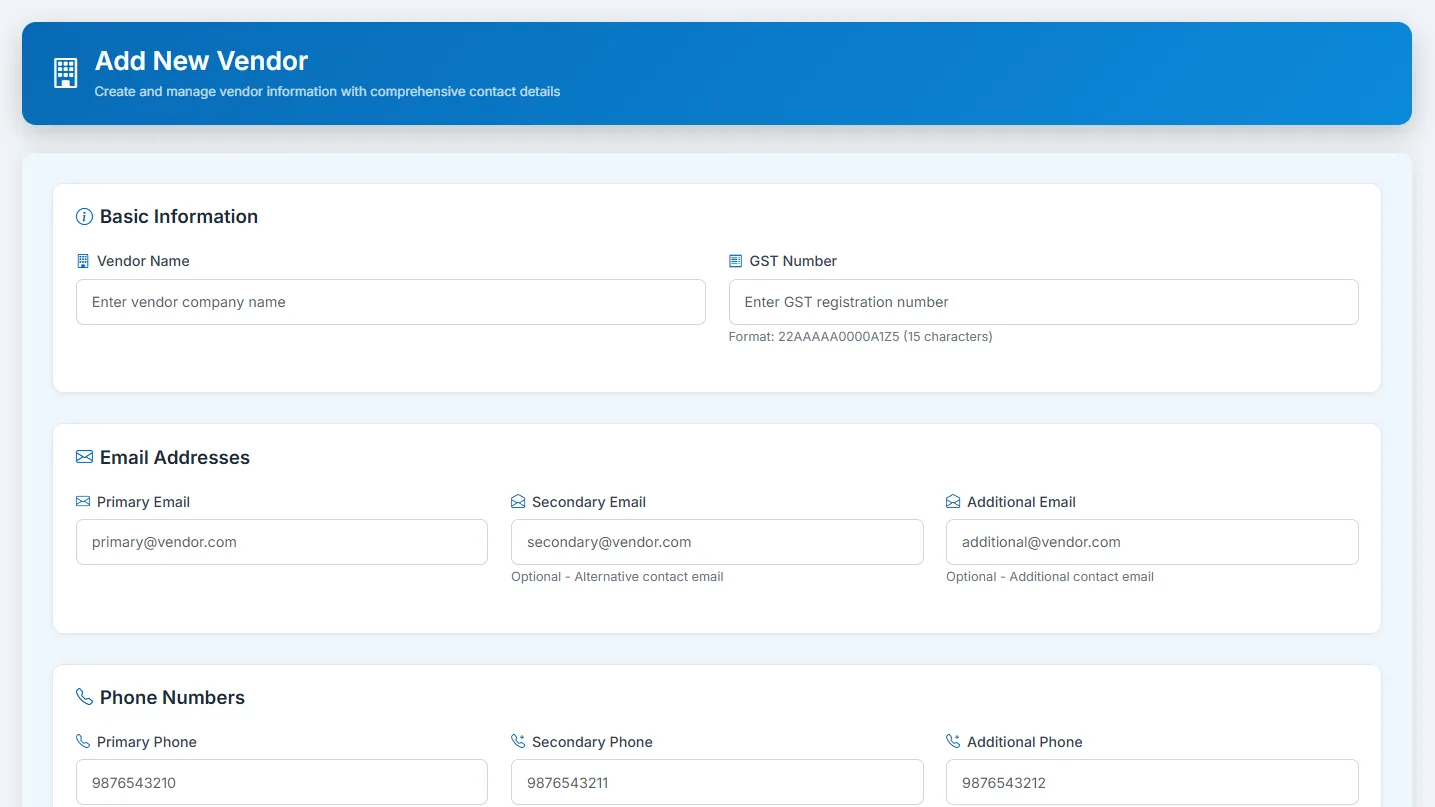
- 1 Click the "+ Add Vendor" button from the Vendor List page.
- 2 Basic Information: Enter the Vendor Name and GST Number (Format: 22AAAAA0000A1Z5 - 15 characters).
- 3 Email Addresses: Add Primary Email (required), and optionally add Secondary and Additional Email addresses for alternative contacts.
- 4 Phone Numbers: Enter Primary Phone (required), and optionally add Secondary and Additional Phone numbers for alternative contact methods.
- 5 Click "Create Vendor" button to save the vendor information to the system.
Importing Vendors from Excel
- 1 Click the "↑ Import Vendors" button from the Vendor List page.
- 2 Upload your Excel file containing vendor data.
- 3 Map Excel Columns: Match your Excel columns to system fields. Required fields are: Vendor Name*, GST Number*, Email 1*, and Phone 1*.
- 4 Review the Data Preview showing the first 5 rows. Unmapped or empty fields will be marked as 'NA'.
- 5 Confirm the mapping and complete the import process to add multiple vendors at once.
Managing Vendors
- 1 Select one or multiple vendors using the checkboxes in the vendor list.
- 2 Use "Delete Selected" button to remove unwanted vendor records.
- 3 Link vendors to assets, purchase orders, and invoices for complete procurement tracking.
- 4 Generate reports to analyze spending by vendor or track asset purchases.